Wednesday, 7 August 2019

Nintendo Switch Lite: Release Date, Price, and Specifications

The Nintendo Switch is going to release its new gaming console in upcoming September 2019. The all-new Nintendo Switch Lite is compact, only handheld gaming console, and is targeted towards young gamers and kids. The new Switch is available in various colors and themes. The gaming console is a perfect device to take on the go. In this article, we are going to discuss everything you need to know about this new device. So let’s get started.
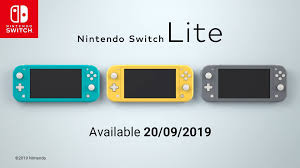


Nintendo Switch Lite: Preorders, Release Date and Price
The gaming console will be launched on 20th September 2019. The device costs around 200 US Dollars. You can preorder it on Amazon, Target, and Best Buy. There is also a special edition “Pokémon Sword and Shield” of this console which will officially come out on November 8, 2019. The standard versions of the console can be preordered by now. But if you want the special edition, then you will have to wait till November 8.

Specifications for the Nintendo Switch Lite
As the name tells, the device is relatively small and compact when compared to the standard Switch. It is made for portability and to be used on the go. The Lite version also focuses on younger gamers. It is also comparatively more affordable than the standard Nintendo Switch. But let’s take a closer look at its technical specifications:
  • Processor and Graphics Processing Unit – Nvidia Custom Tegra Processor
  • Power Backup – 3 to 7 hours
  • Weight- 277.825 grams or 9.8 ounces
  • Size or Dimensions- 8.2 x 3.6 x 0.6 inch
  • Available Colors- Turquoise, gray, yellow, and ‘Pokémon sword, and shield outfit.’

What games can be played on the Nintendo Switch Lite?
You can play any game that can be played in a standard Nintendo Switch in the handheld mode. Which means you can play most of the games in it. Whether you want to play Super Mario Maker 2, Celeste, Breath of the Wild and Ape Out, you will have access to all of them. Your console will have the capability to connect to an additional wireless controller to play the games that are not compatible in the handheld mode. That means after connecting to a wireless controller, you’ll be able to play all the games that are supportable even on non-handheld mode.

More About the Nintendo Switch Lite
The Nintendo Switch Lite has only one handheld playing mode. The device’s controllers are not removable like standard Nintendo Switch. You cannot connect and play games on the TV with it, and it doesn’t even have any kickstand to make it stand on a table. The sound quality of this console is not comparable to the non-Lite version, which has the HD rumble. However, you also have to pay less, and you are still getting enough features such as additional controller connectivity and access to all games.

Sofia Williams is a writer, tech enthusiast, and futurist. She has published several articles online wherein she has explored advanced technologies, news, and trends revolving AI, operating systems, social media, gaming, printer support, like brother, canon and epson printer support etc.

Friday, 26 July 2019

How to Change or Add a New Email Address to your LinkedIn Account

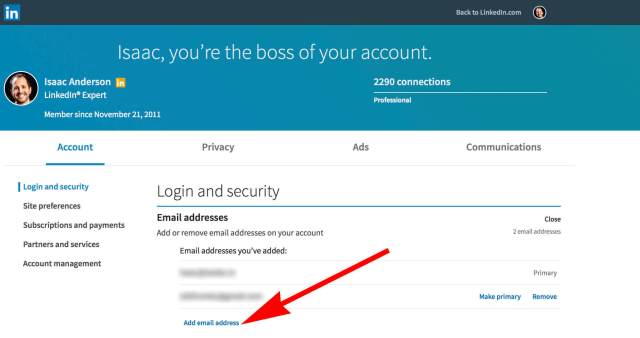
On LinkedIn, your email address is used for mainly two purposes, for logging in to your account and for sending you the emails. The email you’ve provided to LinkedIn at the time of creating your account is the primary email address. You can change this as well as add more email addresses to your account. Here the interesting thing is that you can use both primary and additional emails for logging in to your account. LinkedIn allows you to change the email address in your account easily and quickly whenever you want. Moreover, it is not necessary to do this from the website. If you prefer to use the app , you can also do it from there. Here is how to change or add a new email address to your LinkedIn account.


How to change or add the email address from the LinkedIn mobile app
Apps are always comfortable and uncomplicated to use. You can perform most of the jobs easily on the app. The reason is applications are easy to understand. If you want to use the app for changing the email address on your LinkedIn account, then use these steps.

1. Launch the ‘LinkedIn’ app on your mobile.

2. If you’re not logged in, then log in with the account in which you want to change or add the email address. In case the account is already opened, then verify whether it is the right one.

3. Tap the ‘Sign In’ option.

4. Enter the email address associated with your LinkedIn account, enter the password and tap ‘Sign In’ to continue.

5. Now, tap on the ‘Profile’ icon at the bottom right corner in iPhone and top right corner in Android.

6. Tap the ‘Cog’ icon to go to Settings.

7. Make sure you’re in the Account tab.

8. ‘Email addresses’ is on the top in the Account tab, tap on it.

9. Tap the large blue ‘Add email address’ button at the lower side of the screen.

10. Tap the ‘Email address’ text field and enter the email address you want to add or replace.

11. Then tap the ‘Password’ text field and provide your LinkedIn account password that you use to sign in into your account.

12. Tap the large blue ‘Submit’ button to continue.

13. Then tap ‘Done’. LinkedIn will now send a verification mail to the email address you’ve entered. You’ll need to verify the email address by using the link provided in the LinkedIn message.

14. Access the inbox of the registered email.

15. Open the message from LinkedIn Security with the subject “Confirm your email”. If you don’t find the message in your inbox, check in the spam folder.

16. Then tap the verification link given in the message.

17. After verifying the email address, come back to the ‘LinkedIn’ app.

18. And, tap on the ‘Make Primary’ link. You’ll find the link just below the email address you’ve added and verified.

19. Once again, you’ll be asked to provide your LinkedIn account login password.

20. Enter the password and tap the ‘Done’ button.

Your newly added email address will become the primary email address. Now, you can use this to sign into your Linked account.

To add the email address from the LinkedIn website:
• Sign in with your account on “LinkedIn.com”.

• Select ‘Settings & Privacy’ form the “Me” dropdown.

• Click on ‘Email address’ and follow the same process as changing through the app.

Thursday, 18 July 2019

How To Fix Error 506 On Google Play Store

Many of the users get error code 506, which is a failure of updating and downloading an app. Google Play Store is a secure platform for Android users to get new apps and update the installed ones. 506 error occurs when a user receives failed updates and downloads. The issue can occur due to several reasons and must be resolved. Here are some of the tips and steps to fix 506 error code which prevents you from downloading new apps.


Source:Fix Error 506 On Google Play Store, Brother Printer Support

Use Internal Storage Of Your Device
Whether you are using an Android smartphone or tablet, built-in storage space is available on your smartphone. Moving your targeted application into internal storage is one of the solutions to get rid of the error. Glitch and corrupted SD card often is the root cause of the error by which users face these issues. Moving the app into the internal storage cuts the role of SD card, and the app will be installed in your smartphone’s built-in storage space.

Change The Default Storage location
When you go on Google Play Store to download or update an app, the location is usually fixed to store the apps on your smartphone. If you face that error, simply change the default location where the downloading application will be installed on your Android device. Changing the storage settings resolves the issue in no time.

Restart Your Phone
The method of restarting your phone to fix an issue is way too traditional. In this case, the same goes with the issue of 506 error code. Restarting your smartphone is amongst the best troubleshooting method to adopt. Rebooting your smartphone simply puts all the settings to the default and clears some storage space on your device. Adopting this method instantly refreshes your phone’s memory and clears previously used the application’s data.

Unmount SD Card
Technically, it should be amongest the first method you should apply. Corrupted SD cards are basic problems that result in such errors. Corrupted SD cards cannot contain new data and the risk of losing the existing data is usually so high in such cases. Users can change the download location of the apps to the internal storage or use a new fresh SD card to fix the issue.

Remove Google Play Cache Data
Just like the Cache of your PC and smartphone’s browser. Google Play consists of such cache which needs to be cleared from time to time. Cache data is junk for browsers and Google Play. It can be one of the most basic overlooked reasons which needs to be kept in mind when facing such issues. Cache data prevent users from downloading new apps and update the installed one. It often causes such errors and clearing Cache is the root solution to fix the issue

Thursday, 27 June 2019

How to Create Professional Surveys through Microsoft Forms

If you need to gather relevant information from a set of people for your product or service, surveys are the best solution for you. You get to know others opinion ideally and make right decisions related to your business through them. There are already various excellent tools available in the market for creating surveys. One of them is Microsoft Forms, being offered by Microsoft. Read till the end to know more about this tool.


Source:Creating survey through Microsoft Forms, Canon Printer support

Creating survey through Microsoft Forms

First and foremost, you need to go to the website of Microsoft Forms and log in with your dedicated account information. Go to the My Forms section and click the New Form option for creating a particular survey. Enter an ideal title as well as description to get started. Then, either upload the desired image from your device by clicking the image icon or explore Bing for finding a perfect photo. You also get the option to choose an ideal Theme by going to the top section and set your photo as a background.
You don't need to worry about the given information as Microsoft Forms keeps saving your information from time to time. For checking how the form will look to the participants, hit the Preview button available at the top section. There are even buttons for seeing how they will look on computer and smartphone respectively.

Picking up ideal question type

Hit the green Add New button for adding the question. There are plenty of question types to choose from. Here are they:
* Choice: Let your participants select a dedicated option by providing them Multiple choice questions.
* Date: Get to know a particular date from your participant by choosing this option.
* Likert: Users will get scaling options to respond with the Likert question type.
* Net Promoter Score: You can allow your participants to answer in the form of a score.
* Ranking: The participants can rank the offered options ideally.
* Rating: There is a rating system that you can provide for getting answers as well.
* Text: Get answers for your question through text by choosing this question type.
Also, you can create a dedicated new section in the survey for dividing it into various parts. Enter an ideal description, name for each section, and choose an image if you want to showcase over there.

Features of question types

Some question types don't need extra efforts from your side while some demand. For instance, nothing is there to adjust in date question type. But, adjustment is necessary for Choice question type. Let's have a look at the question types features in detail accordingly.

Choice Question Type

When it comes to multiple choice questions, you will have to provide specific questions and answers for the same. The radio buttons are offered by default, but you can change the style as well. For that, go to More button and then click the Drop-down option. Even you get the option to allow participants to select more than one answer, by enabling the Multiple Answers option available on the bottom section. Select the Add "Other" Option for providing an option for writing.

Rating Question Type

You can provide up to 10 levels and either digits or stars for rating through rating question type. Other than this, it is possible to enter a label for the first and last number or star also. Go to More button option and then select Label.

Text Question Type

Text Question Type allows participants to write freely, but you can adjust it accordingly, too. It is possible to add restrictions if you want. Hit the More button option and then Restrictions. Now, you can choose the question type for numbers and select options such as between, equal to, greater than, and less than. Choose the desired restriction and type in the details related to it.

Sharing the Survey

There are various options for sending or sharing the survey easily. Explore the top section and click on the Send button for viewing all the available options. You can copy the link of the survey for sending directly to the participants, download the QR code, copy the embed code for including on a web page, or create and send a dedicated email with the link of the survey. Facebook and Twitter buttons will there for directly sharing on these particular platforms as well.
In this way, you can use Microsoft Forms for creating surveys ideally!

Wednesday, 26 June 2019

How to Fix Mac Headphones Not Working

Some of the Mac users who have already updated their macOS to its updated version are facing a problem with their operating system not getting any sound from headphones. In case you are facing the same issue, then no worries as you can fix this error by following the instructions mentioned below.


Source:Fix Mac Headphones Not Working , Dell Printer Support

Steps to Fix Mac Headphones Not Working

• Disconnect the headphones.

• Pair the headphones to any other device such as iPhone, iPad, iPod to check whether they are working properly or not.

• Connect them again because most of the times you have to do this procedure to fix Mac headphones not working.

• In case you are still facing the headphones not working issue, then go through the headphone jack to solve this problem.

• It can be possible there is dust on your headphone jack. Clean the dust from the headphone jack and also in the port on the Mac to check in case this solve this issue.

• Connect the headphones again while pressing on the volume keys together.

• Go through the volume controls settings on the headphones.

• Most of the models itself have volume controls which can be volume up and down.

• Go through all the posts by unpairing the whole thing connected into the Mac. Those things include USB devices, Thunderbolt and HDMI, etc.

• If you are facing this issue, then that can be because of the many devices connected to your Mac.

• In case the smart TV paired through the HDMI, then the sound will come from your smart TV rather than speakers and headphones.

• In case you wish to listen the sound from the speakers or headphones when you switched on your smart TV, you have to move to the speaker by pressing on an audio symbol provided in the menu list of your Mac.

• In that menu list, you need to choose speakers or headphones.

• Now, start the Mac again because doing this can fix Mac headphones not working error.

• Start the sound controller again by launching the “Activity Monitor” and searching for the “coreaudiod” by going to the menu list.

• End this procedure by pressing on the X option, and it will start the device automatically.

• Update the macOS.

Here is an additional method to fix Mac headphones not working issue:

• Go to the Apple menu.

• Choose the System Preferences option.

• Press on the Sound option.

• Press on the Output button.

• Select Headphones.

• Change the sound as per your desire in case everything is working fine now.

Wednesday, 19 June 2019

How to Use Assistive Touch on Your iPhone and iPad

Assistive Touch is a virtual Home button which permits you to control the iDevice and also helps you to create gestures such as 3D Touch, pinch, multi-finger swipe, and many others. You can customize gestures and top level menu with the Assistive Touch feature. In this article, you will get to know how to use Assitance Touch on your iPhone and iPad.

Use Assistive Touch on Your iPhone
     Use Assistive Touch on Your iPhone

Steps to Turn On Assistive Touch

•    Go the Settings option by going to the home screen.
•    Press on the General option.
•    Press on the Accessibility option.
•    Click on the Assistive Touch option.
•    Click on the switch given near the Assistive Touch to turning it on.

Steps to Use Assistive Touch on Your iPhone and iPad

•    Press on the shortcut of the Assistive Touch given on display.
•    Press on any of the options which are mentioned below:
1.    Custom. This option permits to insert gestures such as zooming.
2.    Notification Center.  It will open the Notification Center so that you do not need to slide down from the upper side of the display.
3.    Siri. This option helps you to activate Siri to use Assistive Touch on your iPhone and iPad.
4.    Control Center. It opens the Control Center rather than you need to slide up from the end of the display.
5.    Device. This option permits you to use many features such as placing a lock on display, adjusting the volume and moving the display on the upward or downward direction and many other options.
6.    Home. It opens the home screen, and you don’t need to click on the Home button.

Steps for Adding Custom Gestures to Assistive Touch on Your iPhone and iPad

•    Open the Settings tab by going to the home screen.
•    Press on the General option.
•    Click on the Accessibility option.
•    Press on the Assistive Touch button.
•    Press on the Create New Gesture option.
•    Slide to create a new gesture option.
•    Press on the Stop option located at the end right-hand side after completing the adding process of gesture.
•    Press on the Play option to go to your created gesture.
•    Click on the Record option for recording it again.
•    Press on the Save option located in the upper right-hand side of the display for saving the created gesture.
•    Give a title to the created gesture.
•    Press on the Save option.

Steps for Customizing the Top Level Menu in Assistive Touch in Your iPhone and iPad

•    Open the Settings option by going to the Home screen.
•    Press on the General option.
•    Press on the Accessibility option.
•    Click on the Assistive Touch button.
•    Press on the Customize Top Level Menu option.
•    Press on the add buttons option.
•    Otherwise, click on the existing symbol.
•    Click on the function or action option
•    Click on the Done button located in the upper right-hand side of the display.
•    Click on the plus and minus options given on the end right-hand side for adding or subtracting the options.

Steps for Using Custom Actions on your iPhone and iPad

•    Go to the Settings tab located on the home screen.
•    Press on the General option.
•    Press on the Accessibility option.
•    Click on the Assistive Touch option.
•    Press on the Single Tap, Double Tap or Long Press button for customizing every action.
•    Press on the Options button.
•    Now, you have completed all the steps to know how to use Assistive Touch on your iPhone and iPad.
Source:  Use Assistive Touch on Your iPhone and iPad      |    Dell printer support

Monday, 3 June 2019

How To Block Any Program Using Windows Firewall

Many programs try to indirectly communicate with your network without even your knowledge. But Windows Firewall can ease you out, as it can be used to block any application or software on your computer to access the internet without your permission.

Block Program using firewall

Many third party software and apps try to connect to the internet in the background which turns out to be a potential threat for an individual’s personal information as such un-trusted and unreliable software secretly sends the important data of a user to their parent sites leading to a privacy breach. If you are looking for means to use your Windows Firewall to block any such potential programs, then refer to the steps given below.

  • Head to the “Start menu” of your computer or hold “Win” key from your keyboard to launch the Start menu.
  • Now enter “Windows Defender Firewall” inside the search box and select the Windows Defender Firewall from the upper side of Start window.
  • Choose the “Advanced Settings” option from the left-hand corner of the Firewall window.
  • Then from the left-hand side window, choose “Outbound Rules” tab.
  • Now from the list of options from the Action panel choose “New Rule…” which would pop up a new window. Users can create their own rules for the Firewall by using this option.
  • After that select “Program” option by ticking the circular checkbox next to it.
  • Then select the “Next” button from the bottom of the pop-up window.
  • Now select the “This program path” checkbox and choose the “Browse” option.
  • Select the “This PC” option from the left-hand side of the panel.
  • After that, select the drives name in which the program is installed and then select the application by using the left key of your mouse.
  • Once you have chosen the target program file, then click on the address bar from the top of the screen and hold “Ctrl + C” to copy the path of the desired file.
  • Then select the “Open” button from the bottom of the window screen.
  • Now users will have to paste the copied path before the name of the application by using the “Ctrl + V” keys from the keyboard.

It is essential to make sure that the extension and the name of the application are not replaced. If the user accidentally removes the name and extension of the designated program, then the created rule will not work, and your program will not be blocked.

  • Now press the ” Next” button from the bottom of your window. Users will have to use the next button three times, which would bring them to the final page.
  • Now name the rule that you have created by typing inside the Name textfield.
  • Finally, select the “Finish” button to save and apply your established rule.

Hopefully, users will now be able to block any un-trusted or third-party software from using internet network of their computer with great ease and protect their privacy in a much more effective manner.